Give your to-dos a home with Task databases
Learn how to set up, customize, and get the most out of My Tasks.
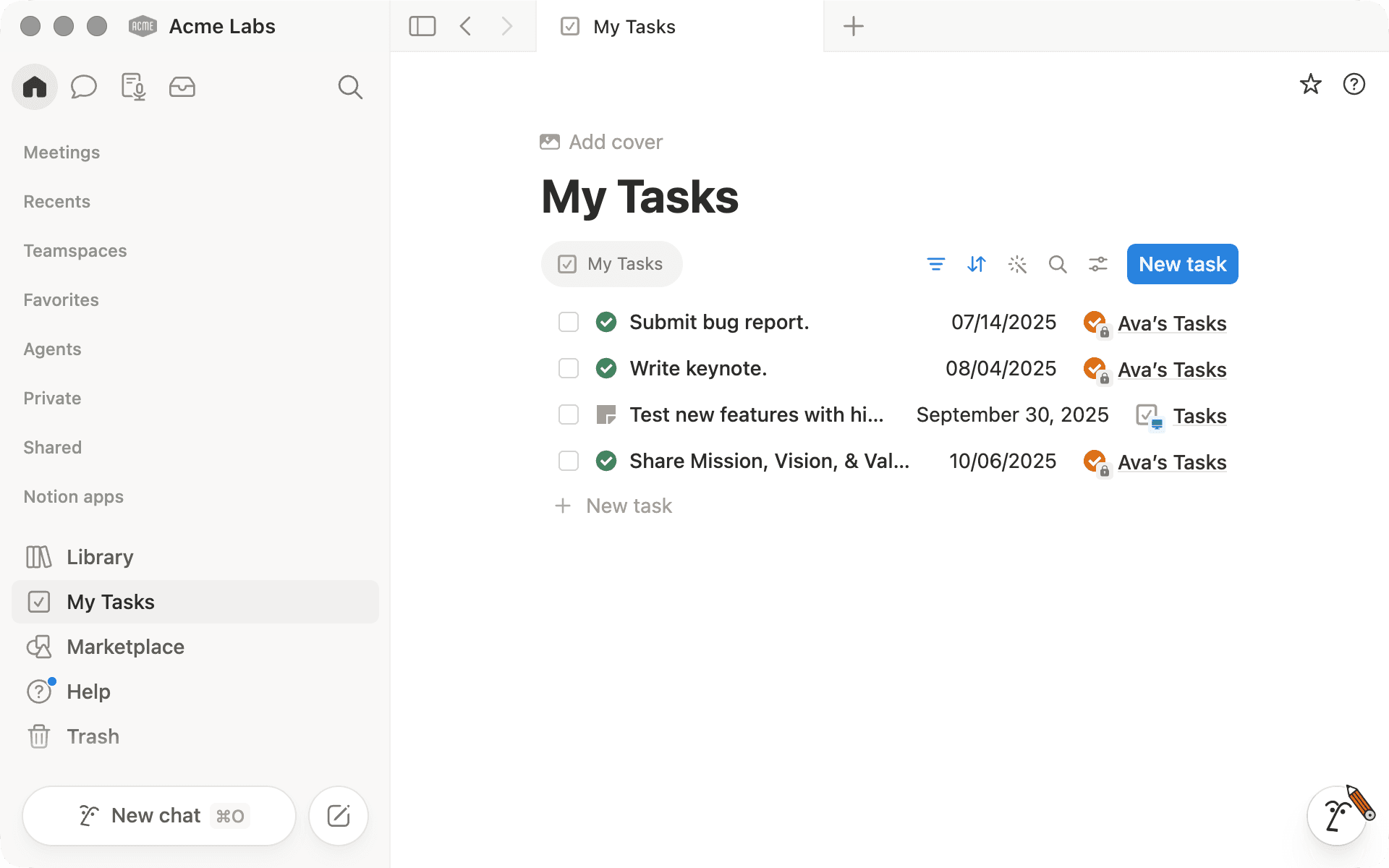
When you're juggling tasks across multiple databases, it's easy to lose track of what actually needs your attention.
My Tasks brings together all tasks assigned to you, from any database in your workspace, into one simple view.
In this guide, you'll learn how to:
Set up My Tasks and connect your databases
View, filter, and update tasks without leaving one screen
Organize your databases so everything shows up reliably
When you open My Tasks from your sidebar, you'll see all tasks assigned to you from any Task type database in your workspace. If you've used Notion's Projects & tasks databases, you may already have these.
If not, here’s how to convert any of your task trackers into a Task database.
Go to the database.
Open the Settings menu.
Under
More settings,clickTurn into Tasks.Task databases must include
Status,Assignee, andDue date. Add any missing properties.
You can add up to 10 Task databases to your My Tasks list.
To choose which databases feed into My Tasks, click New Task, then select Configure under Customize My Tasks. You can connect up to 10 Task databases.
If you don't see the database you're looking for, it may not be set up as a Tasks database. Learn how to convert it into a Tasks database and you're good to go.
Whether you're a copywriter managing tasks across campaigns or an engineer triaging requests from several teams, My Tasks gives you one place to work from.
Let's say you're a project manager juggling tasks from a Product Roadmap database, a Bug Tracker, and a Marketing Requests board. Here's how you'd use My Tasks to stay on top of it all:
See your tasks in one place: All tasks assigned to you from those three databases show up in a single view.
Open tasks for more context: Click on a bug report to read the repro steps, or open a marketing request to check the brief.
Update tasks quickly: Mark a roadmap task as "In progress" or reassign a bug without switching databases.
Change how tasks are displayed: Switch to a board view to see everything by status, or a calendar to plan your week.
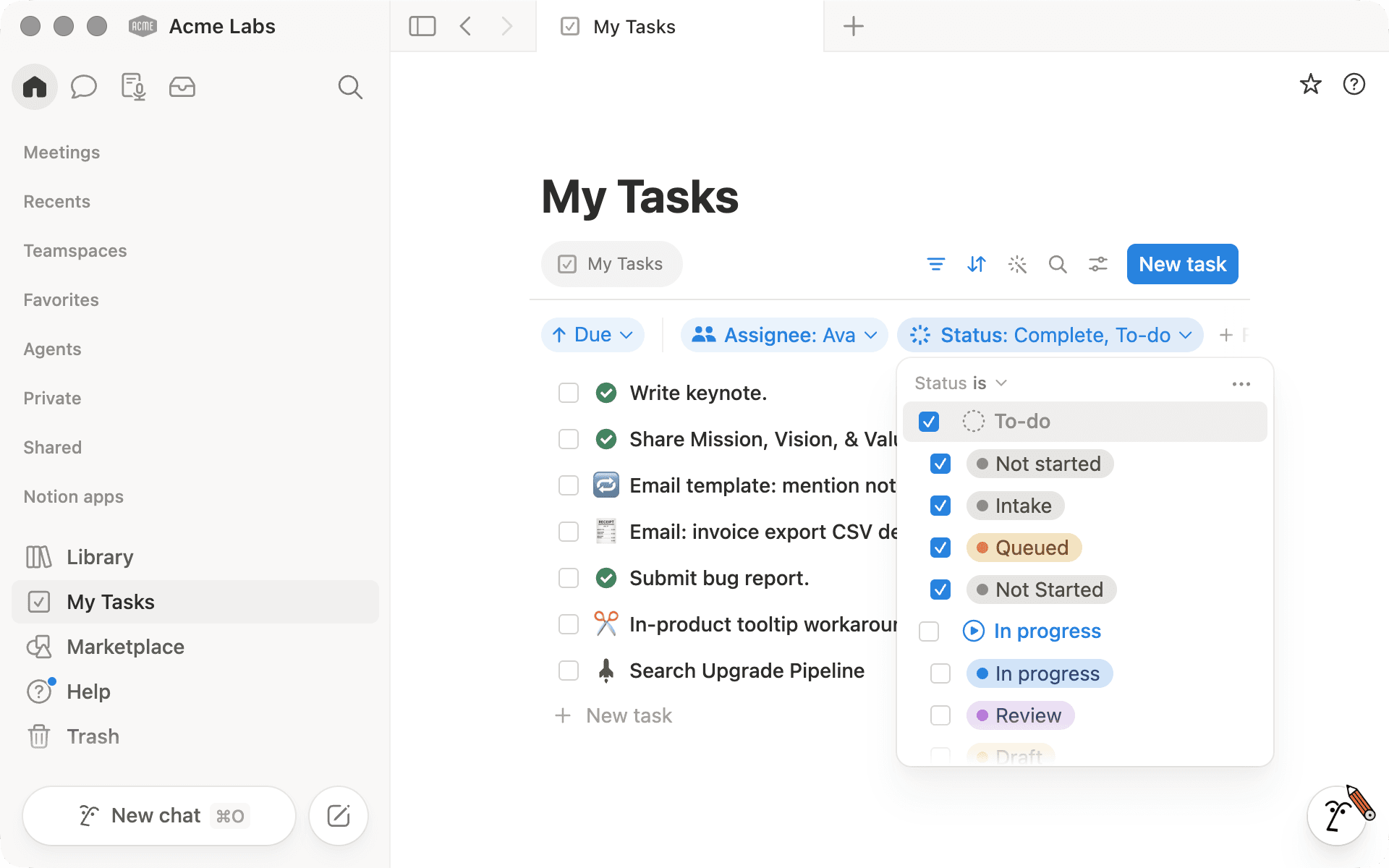
Filter and sort your tasks: Filter by the Roadmap database to focus on product work, or sort by due date when deadlines are stacking up.
Check tasks across your team: Adjust the filter to see what's assigned to your team, not just you.
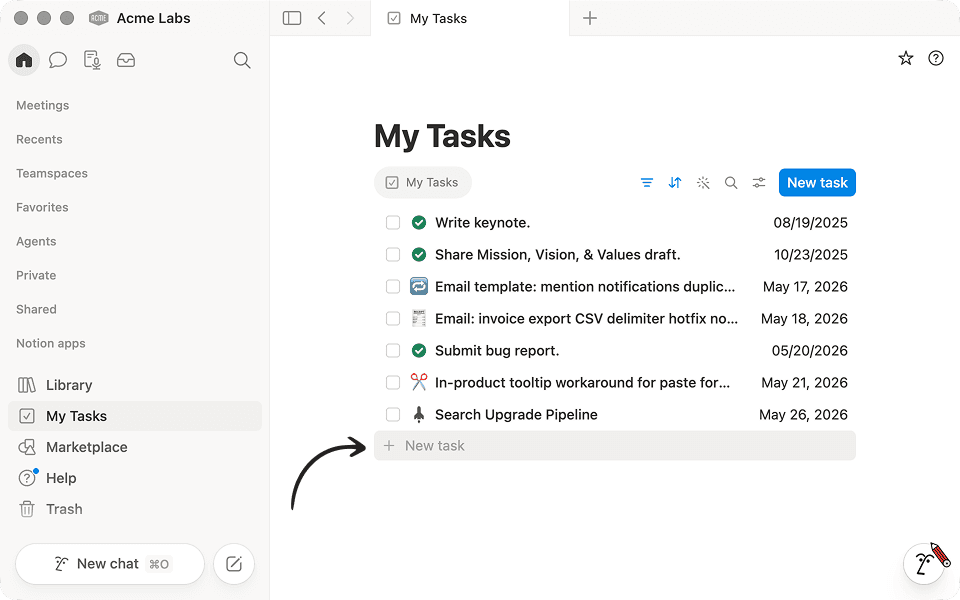
Add new tasks: Hit
+to create a task directly. Some fields will auto-fill based on your setup.
My Tasks works best when you keep your task databases consolidated. Here are a few strategies to keep things running smoothly.
1. Consolidate your task databases
Instead of creating a separate task database for every project or client, aim for a small number of shared databases. You can use filtered views to preserve the same per-project or per-client experience without the sprawl.
2. Connect tasks to projects with Relations
Create one Tasks database and one Projects database, then link them with a Relation property. On each project page, add a linked (filtered) view of Tasks so you only see what's relevant to that project.
3. Share with external partners using filtered views
Keep tasks in one central database and create filtered views as partner-specific portals. Use row-based (page-level) permissions to control who can open each task page, so external collaborators only see the tasks meant for them.
No more checking five databases to figure out what's on your plate. With My Tasks set up, everything comes to you.

Learn more about managing projects in Notion
Get started with a Projects & tasks system to connect all your work
Discover how engineering and product teams plan sprints in Notion
A guide to using sub-tasks and dependencies here

Templates
A connected Projects & Tasks template
A product roadmap here
A tasks and issues tracker here
Something we didn’t cover?